
.svg?fit=max&auto=format&n=rBROILWhBGfA_4EY&q=85&s=0185f3e9df88428c430b0b130b94d569)
Product.products(for:) returns an empty array without an error, and your paywall renders with nothing in it.
The standard way to develop against this is StoreKit Testing, Apple’s local testing mechanism: your app loads test products from a .storekit configuration file instead of from Apple’s servers, so you can build and test the entire purchase flow before anything exists in App Store Connect. Modaal supports it directly — select a .storekit file in Run Options, run, and your paywall fills in. What to charge and which tiers to offer is a separate decision — how to monetize your mobile app covers it.
The three StoreKit environments
Your app can load products from three different sources. Most paywall problems come down to being in a different environment than you think, so it’s worth understanding how the three differ..storekit file is a launch setting, not part of your app. Modaal applies it when it starts the app, which is why the change takes effect immediately in the simulator — and why the file can never end up in a TestFlight or App Store build. It isn’t compiled into the binary.
Select a StoreKit configuration
The cogwheel to the right of the Run button opens Run Options, Modaal’s equivalent of the scheme editor in Xcode.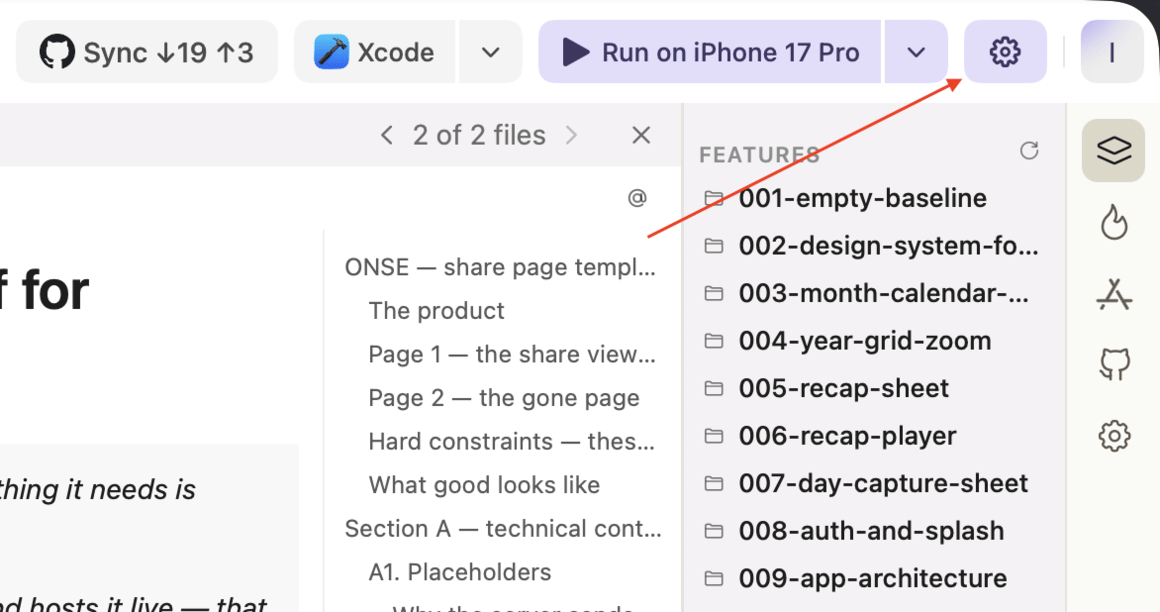
The Run Options cogwheel, immediately right of the Run button.
Open Run Options
.storekit file it finds in your project, so there’s nothing to type or browse for.Choose a configuration
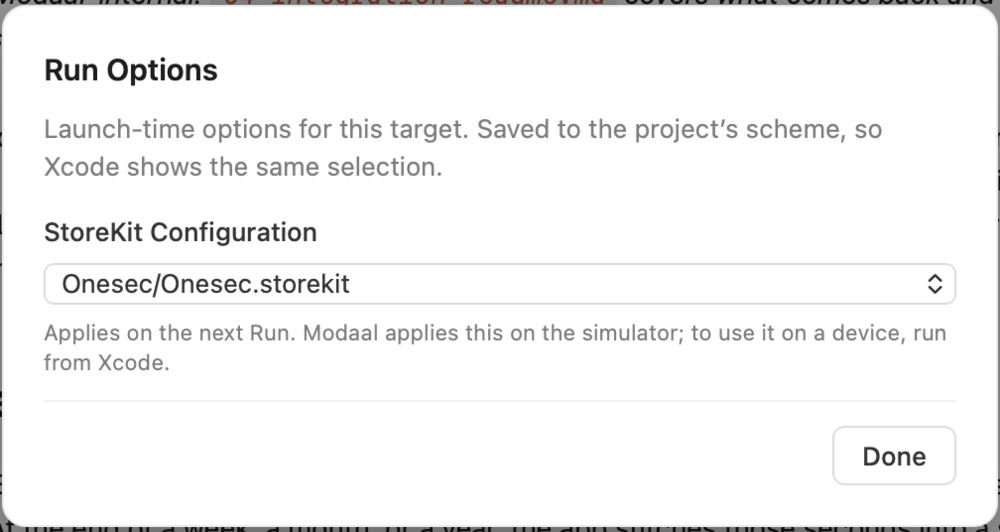
Choose a .storekit file — or None to use your App Store Connect products.
Run

Applied — the app loads products from your local file.

Cleared — the app requests your real products from App Store Connect.
.storekit file also take effect on the next run. Change a price, run the app, and the new price appears — you don’t need to delete the app or reset the simulator.Confirm which environment you’re in
Product identifiers can’t tell you which environment you’re in. The identifiers in your.storekit file are deliberately the same as the ones in App Store Connect — that’s what lets the same code run in every environment — so a populated paywall looks equally plausible in either one.
Prices and product names are the reliable signal. Here is the same app, in the same simulator, with the same product identifiers, run twice:
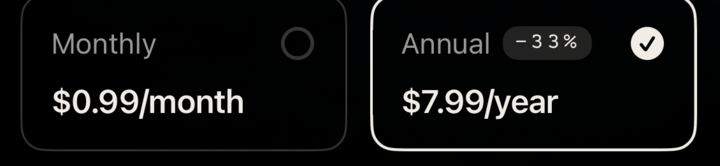
With the local configuration selected — the prices come from the .storekit file.
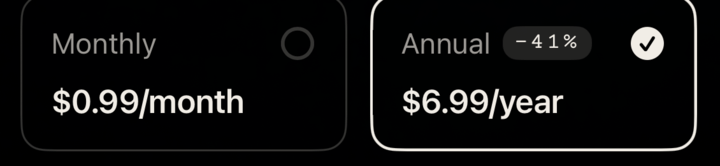
With StoreKit Configuration set to None — these are the live App Store Connect prices.
The setting is shared with Xcode
Modaal writes your selection into the project’s scheme — the same place the scheme editor in Xcode stores it. Open the project in Xcode and the configuration is already selected; run it with ⌘R and you get the same result.| Run from Modaal | ⌘R from Xcode | |
|---|---|---|
| Local configuration | 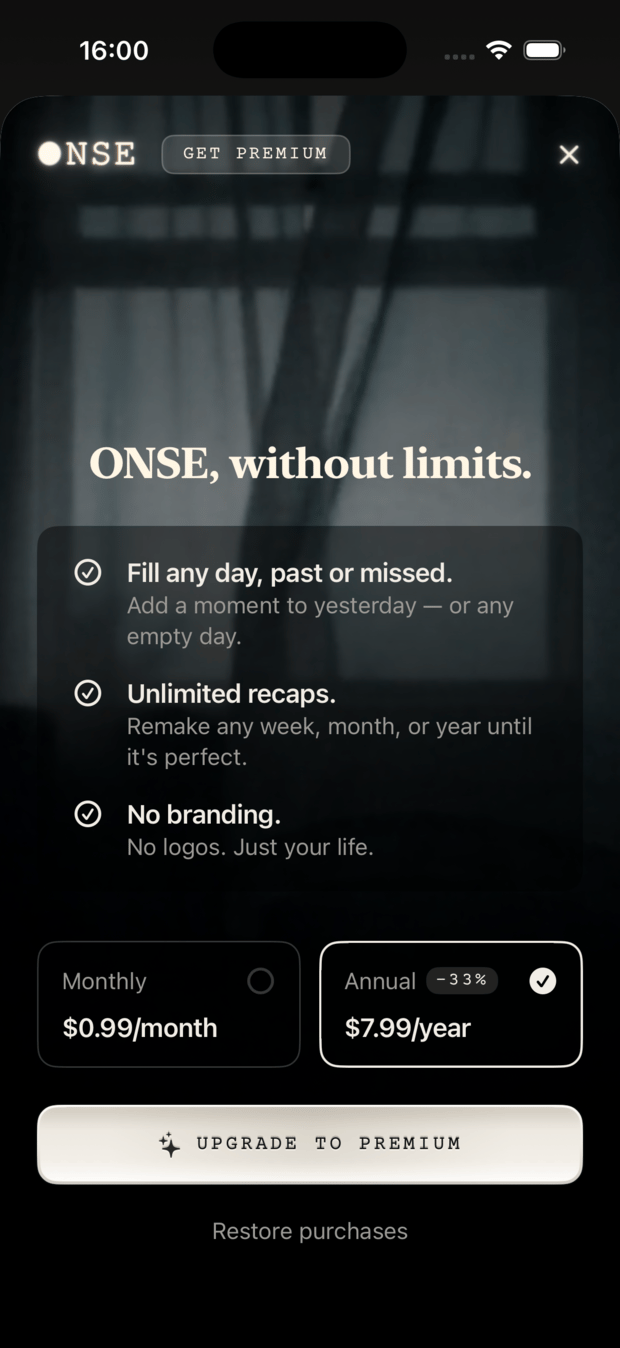 | 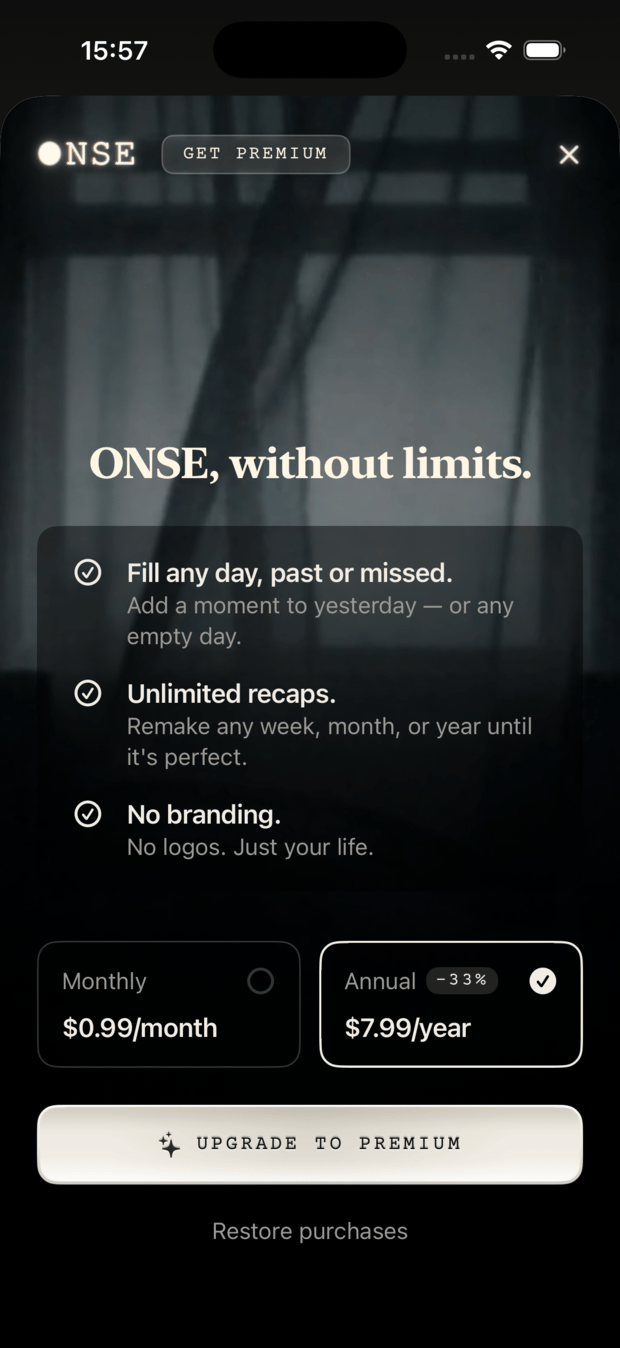 |
| None | 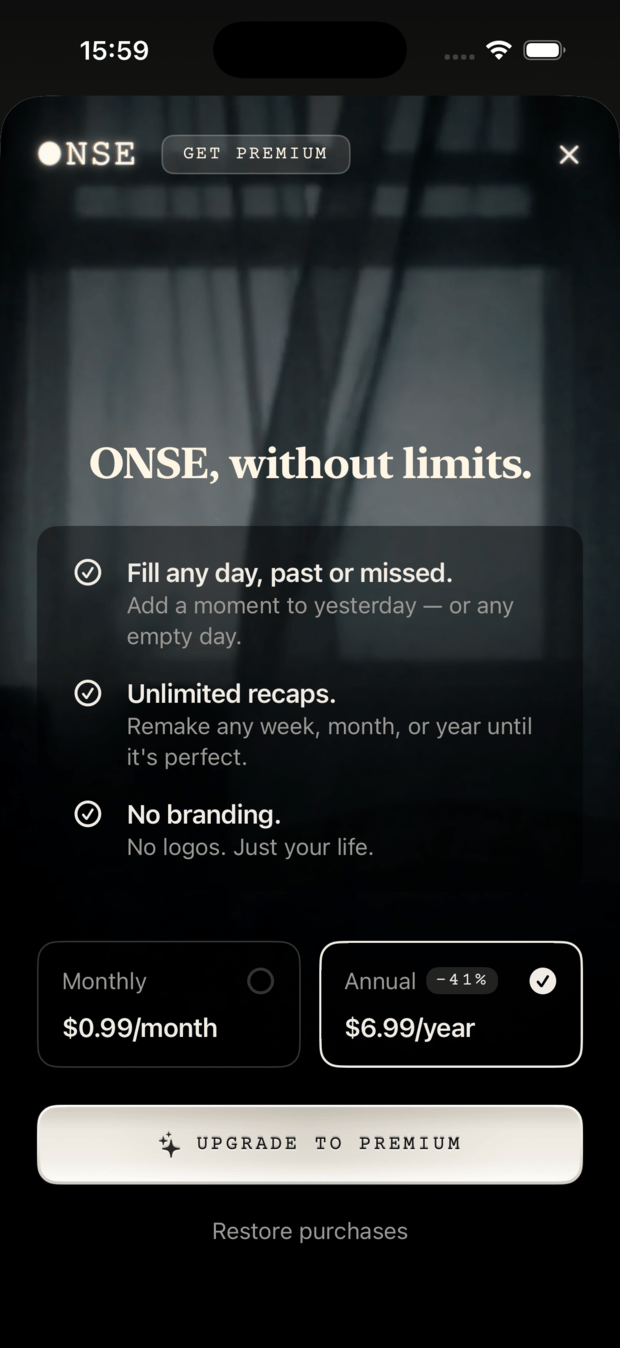 | 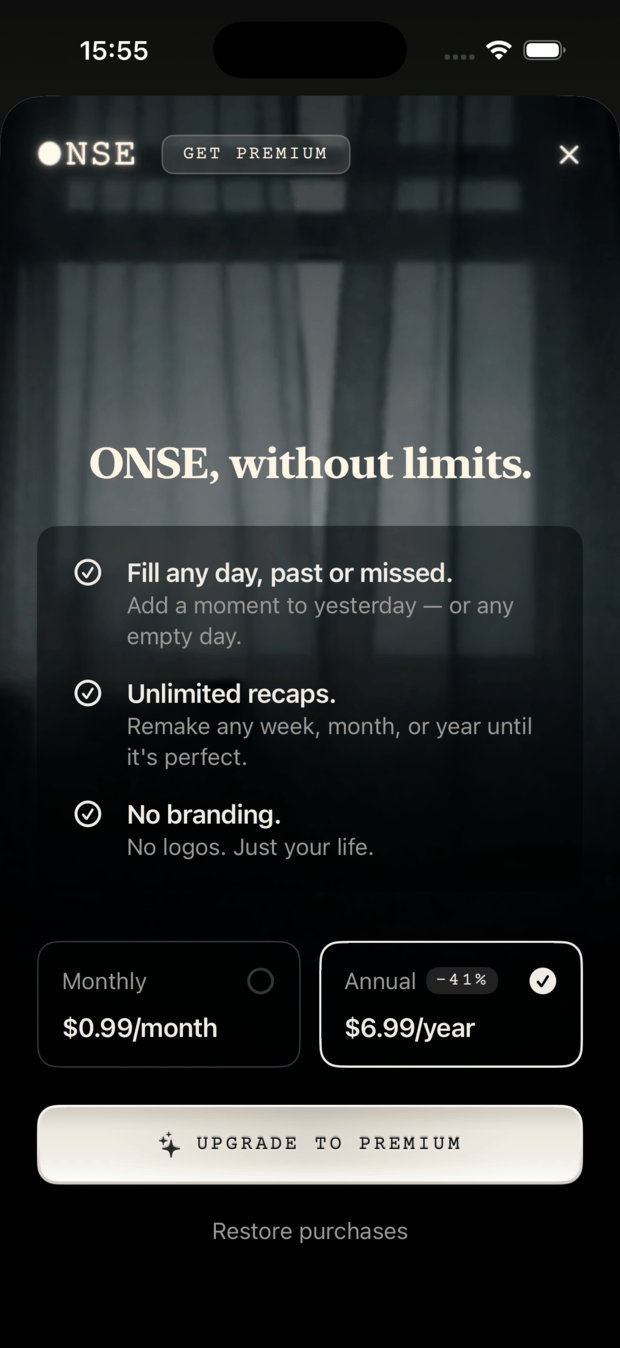 |
Testing on a real device
Modaal applies the configuration on the simulator. On a physical device it writes the setting into your scheme but can’t inject it at launch; that part of the mechanism belongs to Xcode. To use local test products on a device, open the project in Xcode and run it from there. Both the Run Options dialog and the build log note this, so you always know which case you’re in.Starting from scratch
If your app has no paywall yet, the fastest route is to build it against local products from the start:Ask for the products and the paywall together
Add a Premium subscription with monthly and annual plans and a one-week free trial. Create a StoreKit configuration file so we can test it locally, then build a paywall screen that loads the plans and shows the annual savings.
Select the configuration in Run Options and run
Iterate on the design
.storekit file and run again. None of this touches App Store Connect, so there’s nothing to wait for and nothing to undo.Create the real products
Fix an empty paywall and other StoreKit failures
The paywall is empty
The paywall is empty
→ simulator) and the paywall is still empty, check the following, in order of likelihood:- Product identifier mismatch. The identifiers in the
.storekitfile must match the identifiers your code requests exactly. This is the most common cause. - A subscription outside its group. In a
.storekitfile, auto-renewable subscriptions belong in a subscription group, not in the general products list. A subscription in the wrong list is never returned. - You’re on a physical device. See Testing on a real device.
The paywall is empty. We’re running with the StoreKit configuration applied. Compare the product IDs in the .storekit file against the IDs the app requests, and check that subscriptions are in a subscription group. Fix any mismatch.If no configuration was applied (the log shows
cleared, or there’s no StoreKit line at all), the app is requesting products from App Store Connect — continue to the checklist below.The paywall is empty without a configuration
The paywall is empty without a configuration
- The Paid Applications Agreement isn’t active. This is the most common cause. In App Store Connect, under Business, the agreement must be signed, the tax forms completed, and a bank account attached. Until all three are done, StoreKit returns no products, and nothing else on this list matters.
- The product is in the Missing Metadata state. Products in this state are never returned. Add a reference name, product identifier, price, and at least one localization — and for subscriptions, a group and a duration. A product in the Ready to Submit state is returned.
- The bundle identifier doesn’t match. Your app’s bundle identifier must exactly match an existing App Store Connect record. The build itself doesn’t need to be uploaded.
- The changes haven’t propagated yet. New products and metadata changes can take from a few minutes up to an hour to appear. If everything above is in order, wait and try again — there’s nothing to fix in your code.
The prices aren't what I set
The prices aren't what I set
displayPrice in your .storekit file:- If they match, the app is using your local test products.
- If they differ, the app is using your real App Store Connect products, and the configuration isn’t applied.
A purchase succeeded, but the app still shows the free plan
A purchase succeeded, but the app still shows the free plan
- The transaction was never finished. Finish every successful transaction after you grant access. StoreKit redelivers unfinished transactions indefinitely, which can leave the user stuck.
- Access is stored instead of derived. A flag like
isPremium = truesaved at purchase time survives refunds, expirations, cancellations, and reinstalls. Derive access from the current entitlements at every launch instead. - Nothing listens for transaction updates. Purchases can complete outside your paywall — an approved Ask to Buy request, a renewal, a purchase made on another device, a refund. Start a transaction listener at app launch so the app hears about them.
After a successful purchase the app still shows the free tier. Check that we finish the transaction after granting access, that premium status is derived from the current entitlements rather than a stored flag, and that we have a transaction updates listener running from launch.To verify the fix, buy the subscription with a local configuration applied, then expire or refund it from Xcode’s Debug → StoreKit → Manage Transactions window and confirm that the app revokes access.
Restore Purchases doesn't bring anything back
Restore Purchases doesn't bring anything back
- The button runs a purchase flow instead of re-reading entitlements.
- Access is stored locally, so a fresh install has nothing to read and nothing to restore.
- The purchase was made in a different environment. A purchase made against local test products doesn’t exist in sandbox, and vice versa — restore in the environment you bought in.
Delete and reinstall the app, then check that Restore Purchases brings back the subscription without asking me to buy it again.
Testing failures — declines, interruptions, billing retry
Testing failures — declines, interruptions, billing retry
.storekit file also has settings for injecting errors and simulating slow networks.Scenarios worth covering before you ship:- Purchase interrupted (app killed mid-transaction)
- Purchase declined by the payment method
- Subscription expires and isn’t renewed
- Subscription enters billing retry, then recovers
- A refund is issued after the fact
- Ask to Buy — a parent approves or denies
Write a test that covers what happens when a purchase is interrupted and the app is relaunched before the transaction finishes. The entitlement should still be granted on relaunch.
Purchases work in the simulator but not on TestFlight
Purchases work in the simulator but not on TestFlight
.storekit file was never part of the build, so a TestFlight build is your app’s first real contact with App Store Connect — and the first moment the agreement and metadata problems from the checklist above can surface.Sandbox differs from StoreKit Test in a few ways:- Testers use their regular Apple Account; no separate sandbox account is needed.
- Purchases are free, and subscription renewals are accelerated.
- Auto-renewable subscriptions stop renewing after about six cycles.
- None of the StoreKit Test tools are available — no forced failures, no time travel, no clearing transactions.
.storekit file attached. That run is what proves your receipts, your server notifications, and your backend against Apple’s real servers.Creating a .storekit file
Creating a .storekit file
Create a StoreKit configuration file for the app with our subscription products, and wire it up so I can select it in Run Options.The agent adds the file and configures the project so the file stays out of your shipped app — local test prices don’t belong in a build that goes to the App Store.You can also create one in Xcode with File → New → File → StoreKit Configuration File. Either way, the file appears in Run Options the next time you open the dialog.
Choosing your first products
Choosing your first products
- One monthly and one annual subscription in a single group, with the annual plan priced so the savings are easy to see.
- An introductory offer on both — a free trial is the most common.
.storekit file first and iterate on the paywall locally. Once the design settles, create matching products in App Store Connect with the same product identifiers — that’s what lets the same code work in every environment.Before you ship
.storekit file attached, against real App Store Connect products.