
.svg?fit=max&auto=format&n=rBROILWhBGfA_4EY&q=85&s=0185f3e9df88428c430b0b130b94d569)
ArrangementView, GeometryProxy.reservedRegions(kind:) and UIView.reservedRegions(kind:options:) — exist only in the iOS 27.1 SDK, which comes with Xcode 27.1 beta. A project that adopts them hits two restrictions at once:
- Xcode 27.1 beta builds the project and runs it on the iPhone Duo simulator, but App Store Connect sends a build to review only if it was made with the current public (GM) Xcode or its release candidate. A build from Xcode 27.1 beta uploads, then cannot be added for review.
- Xcode 27.0 produces builds that App Store Connect accepts for review, but its iOS 27.0 SDK does not declare the iPhone Duo APIs, so the project does not compile.
if #available(iOS 27.1, *) does not fix the Xcode 27.0 build. #available chooses a code path when the app runs; the compiler still has to find every symbol in the SDK it builds against.
This guide changes the project so that the same source compiles under both Xcodes. Xcode 27.1 beta compiles the iPhone Duo layout; Xcode 27.0 compiles the layout the app had before, and that build can go to App Store review today. When App Store Connect starts accepting Xcode 27.1 builds for review, you archive the same code with Xcode 27.1 and submit it again.
Why the usual pre-approval steps fail for this project
The common advice for getting an app approved ahead of a launch date is three steps in App Store Connect: upload a build, submit it for review, and select Manually release this version so the approved version waits until you release it.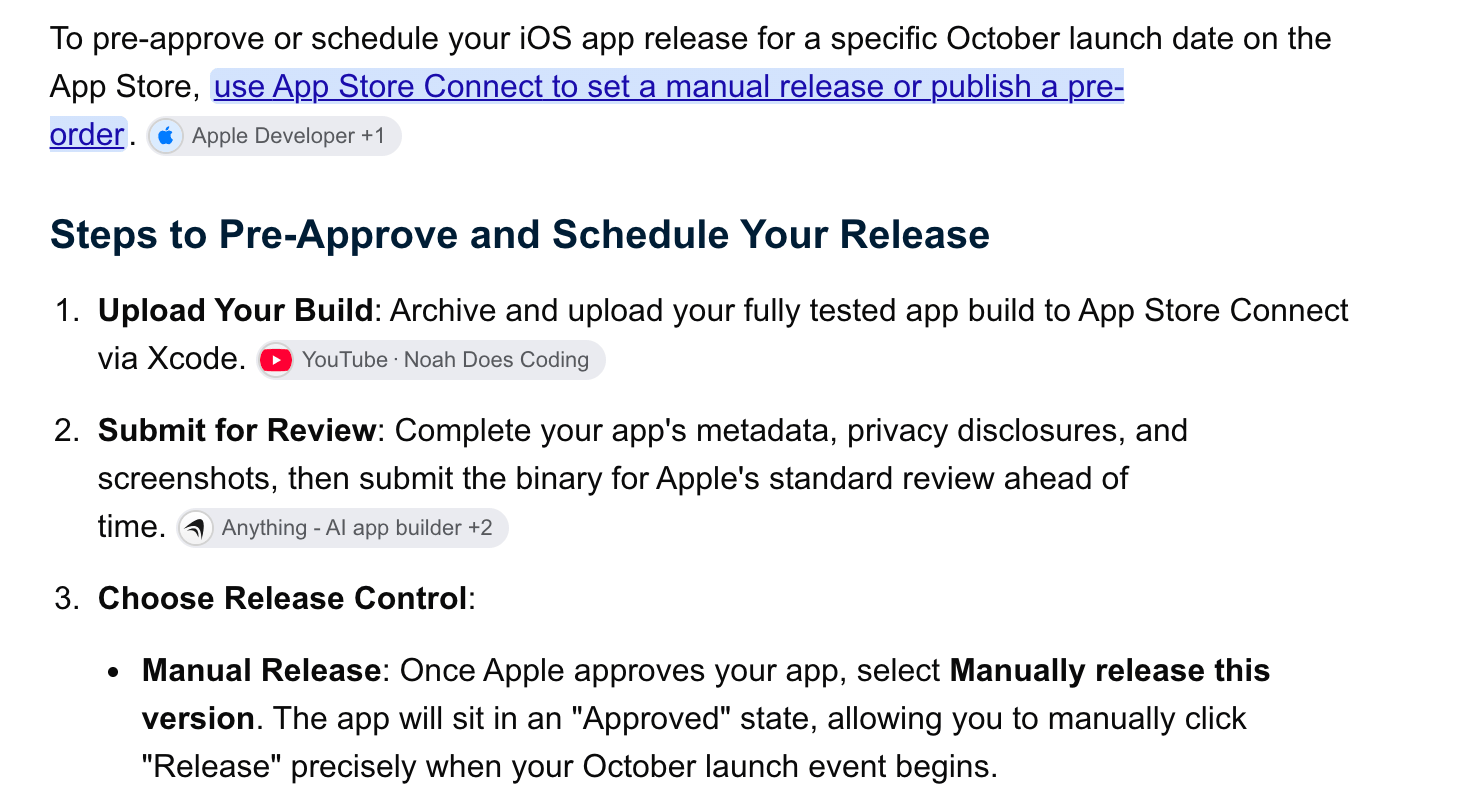
The common advice for pre-approving a release. For a build made with Xcode 27.1 beta, step 2 fails.

App Store Connect, Add for Review, with a build from Xcode 27.1 beta: “This build is using a beta version of Xcode and can’t be submitted.”
Step 1 — Install Xcode 27.0 and Xcode 27.1 beta side by side
Download both from Apple Developer downloads. Sign in with your Apple Account.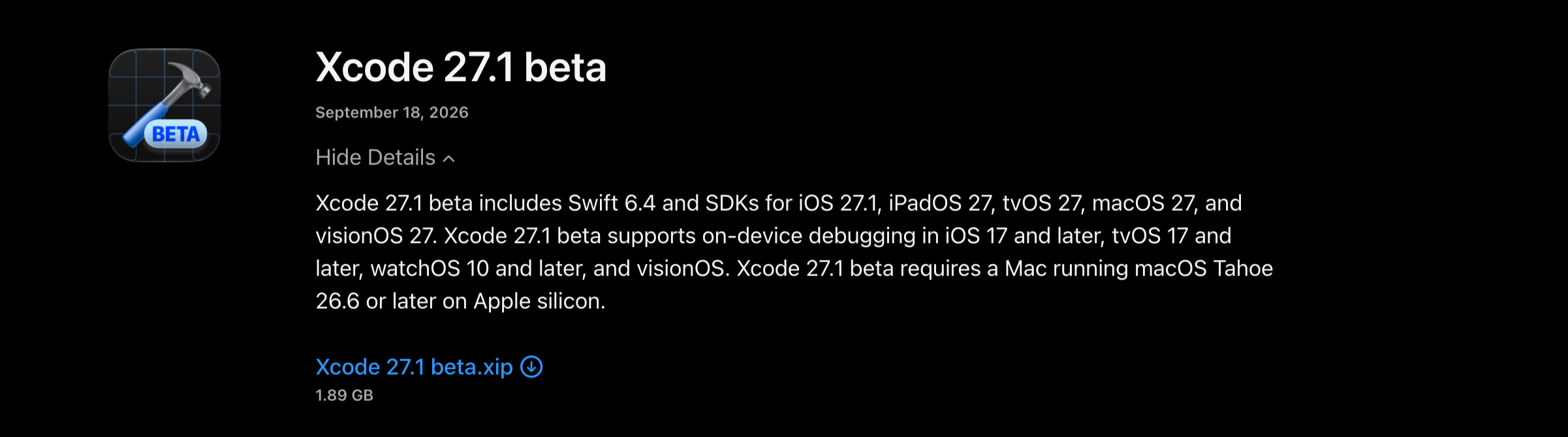
Xcode 27.1 beta: Swift 6.4 and the iOS 27.1 SDK. It requires macOS Tahoe 26.6 or later on an Apple silicon Mac.
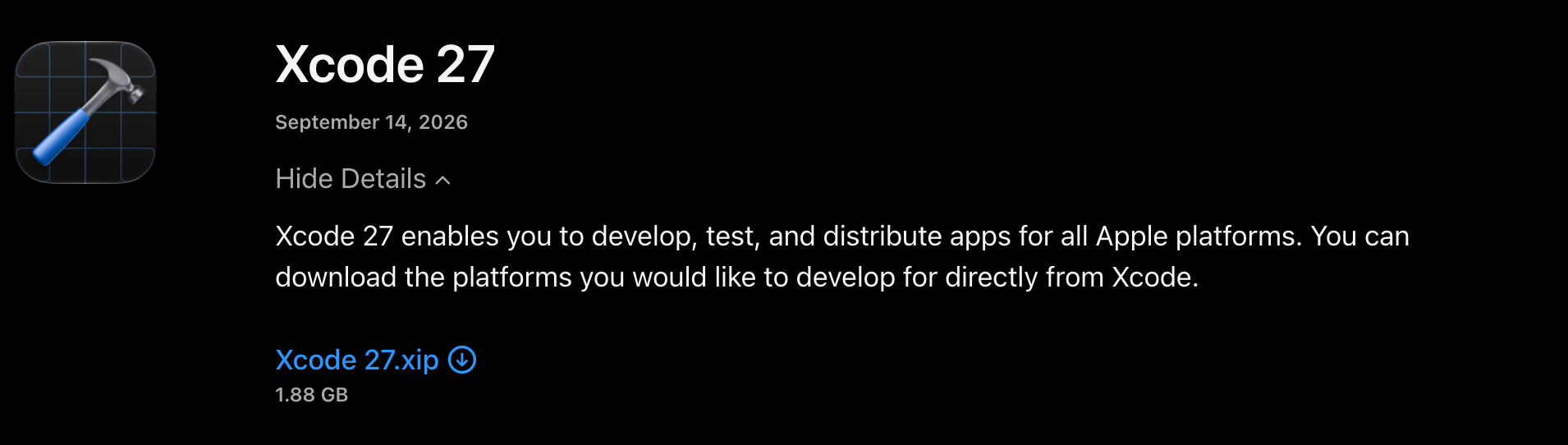
Xcode 27, the current release. App Store Connect accepts builds made with it for review.
.xip and move both apps into /Applications under different names. The prompt in step 5 uses /Applications/Xcode_27_0.app and /Applications/Xcode_27_1_beta.app. If yours are named differently, the agent finds them with ls /Applications | grep -i xcode, which is the first thing the prompt tells it to run.
Open each Xcode once and download its iOS platform in Xcode → Settings… → Components. Set up Xcode covers the first launch and the license prompt.
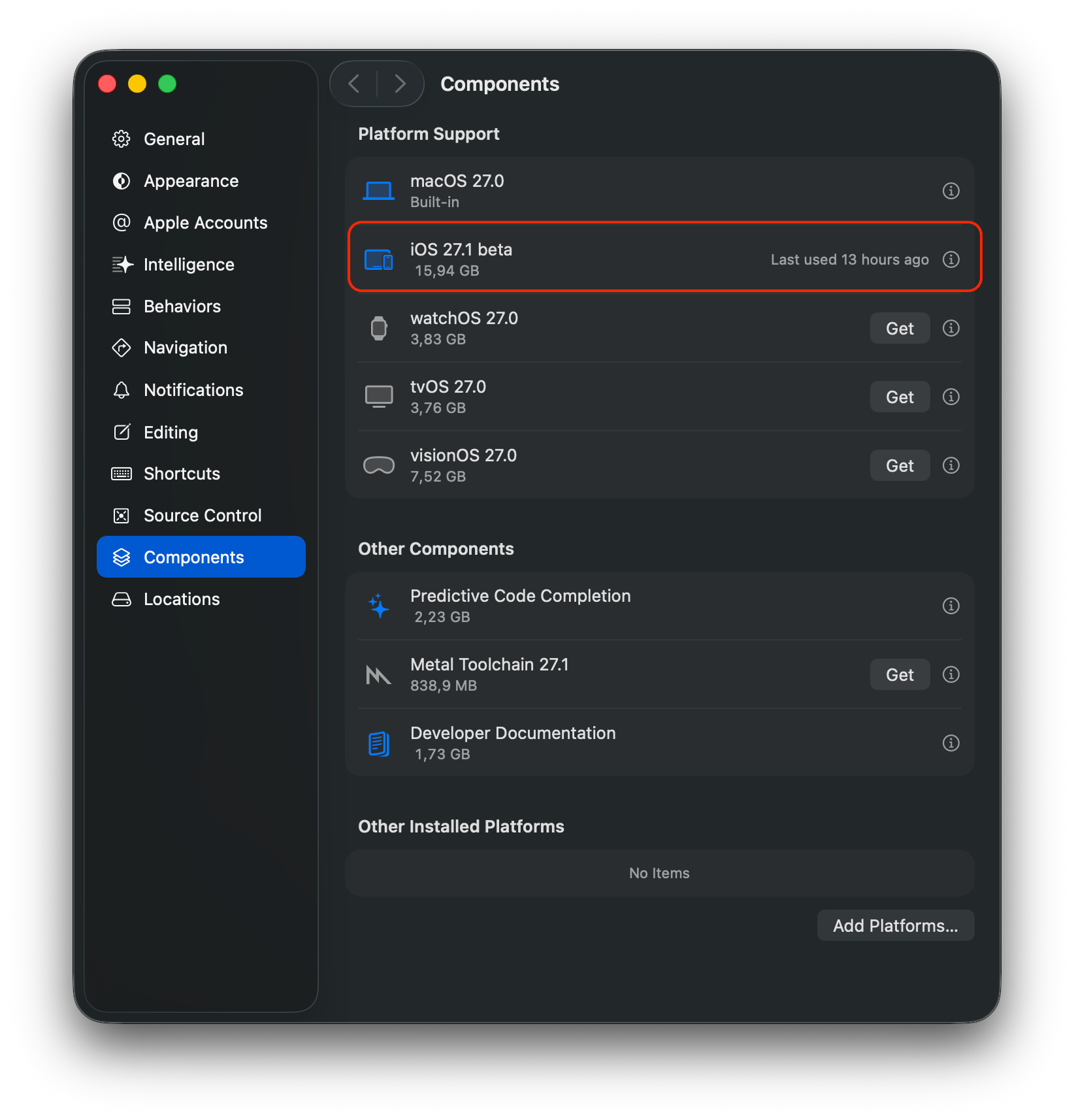
Xcode 27.1 beta, Settings → Components: the iOS 27.1 beta platform is installed.
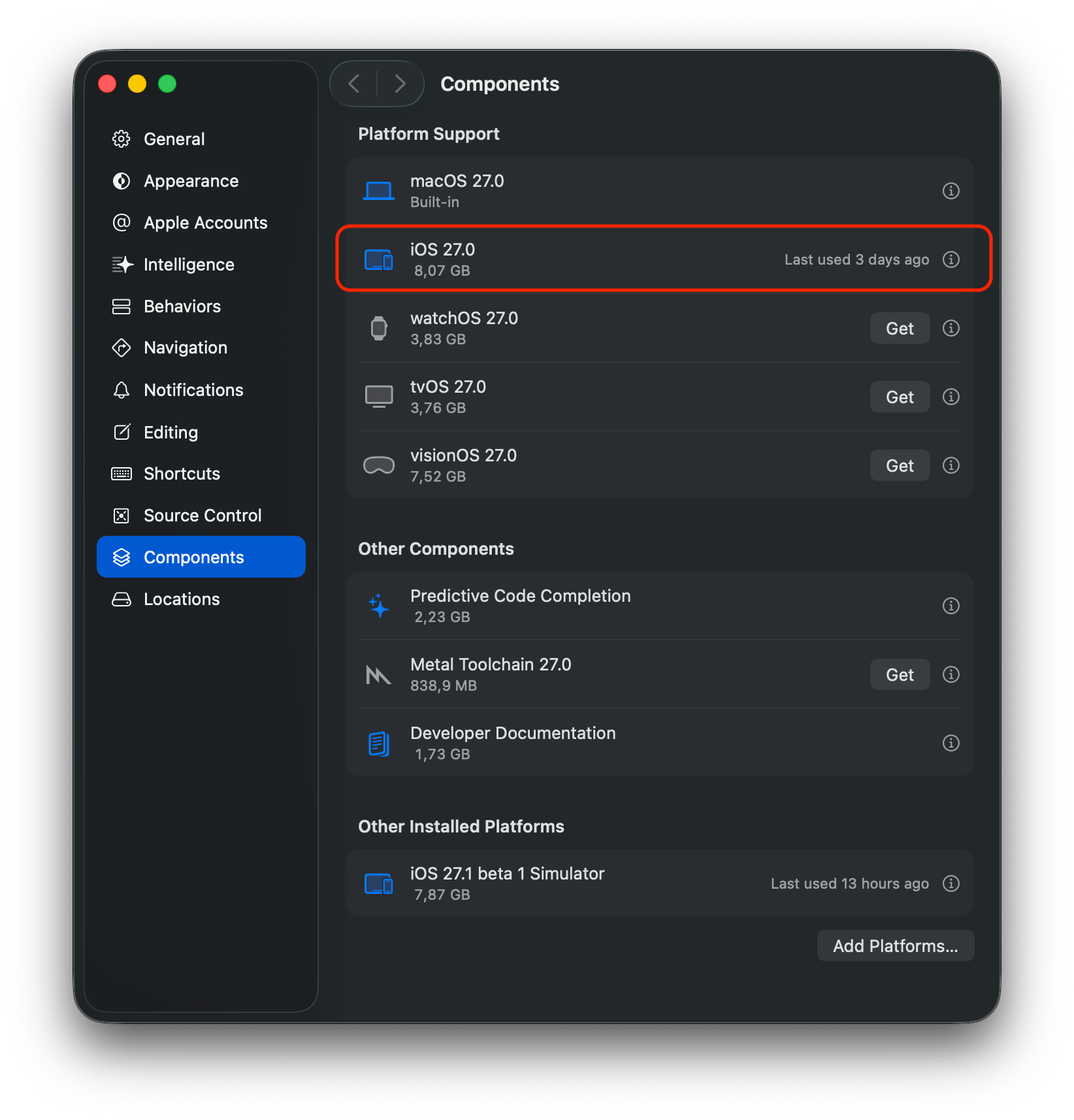
Xcode 27.0, Settings → Components: iOS 27.0 is installed. The iOS 27.1 beta simulator that the other Xcode installed is listed under Other Installed Platforms.
Step 2 — Set Xcode 27.1 beta as active in Modaal
Click your profile avatar, choose Set up Xcode, and click Set as active on the installation at/Applications/Xcode_27_1_beta.app. Modaal builds, runs and archives with the active Xcode. Have more than one Xcode installed? explains the switch and the administrator password it asks for.
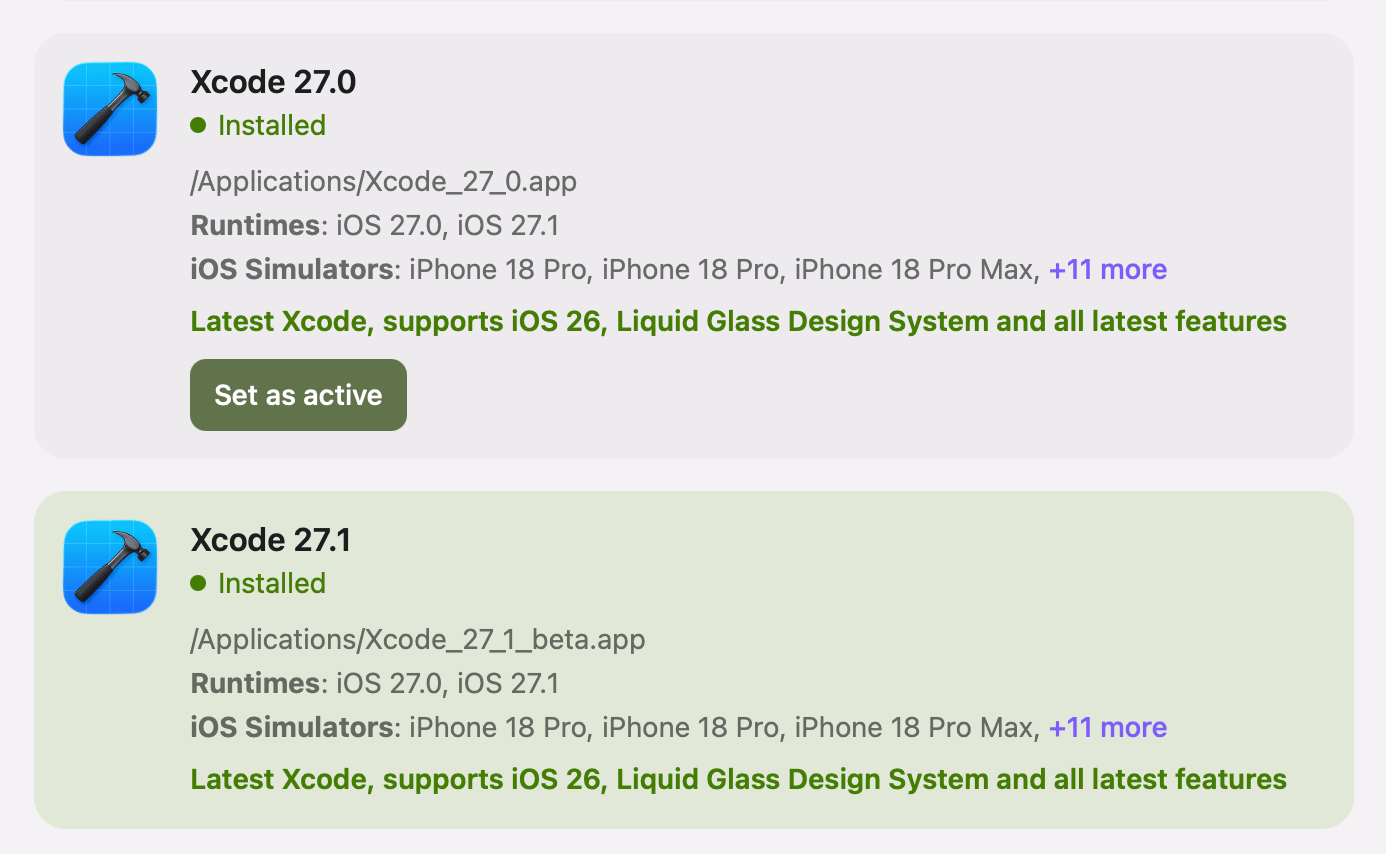
Xcode 27.1 beta is active: its card is highlighted and has no Set as active button. The panel shows the beta as “Xcode 27.1”; the path identifies which installation is which.
Step 3 — Build and test the iPhone Duo layout
Build the iPhone Duo features with the iOS 27.1 APIs:ArrangementView with its .split and .overlay styles, GeometryProxy.reservedRegions(kind:), and UIView.reservedRegions(kind:options:) in UIKit code. Choose the iPhone Duo simulator in the menu next to the Run button and test the layout there.
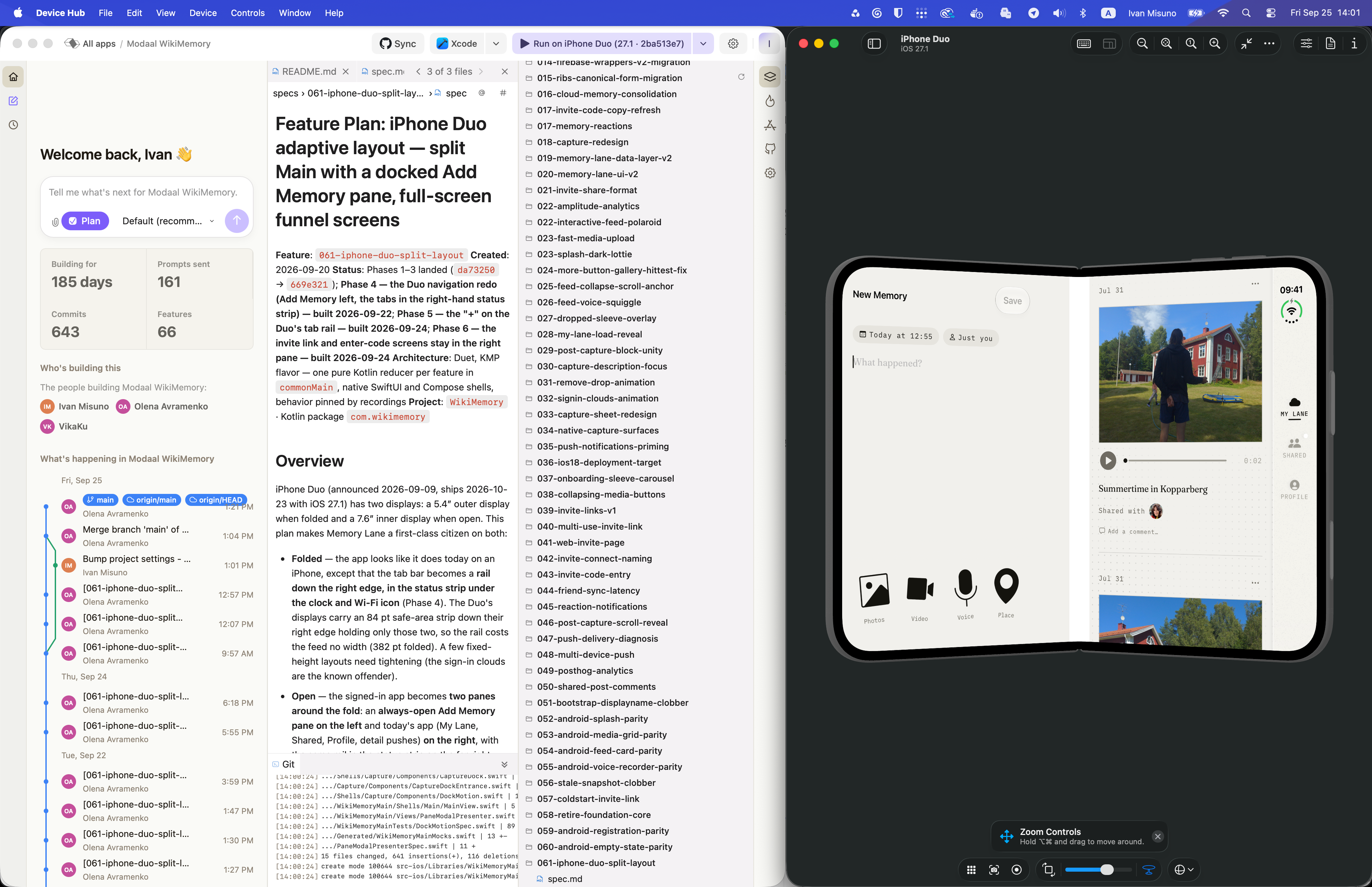
Memory Lane built with Xcode 27.1 beta on the iPhone Duo simulator (iOS 27.1), open: the New Memory pane left of the fold, the feed on the right, the tabs in a rail down the right edge.
Step 4 — Set Xcode 27.0 as active and archive
When you are ready to submit, open Set up Xcode again and click Set as active on Xcode 27.0.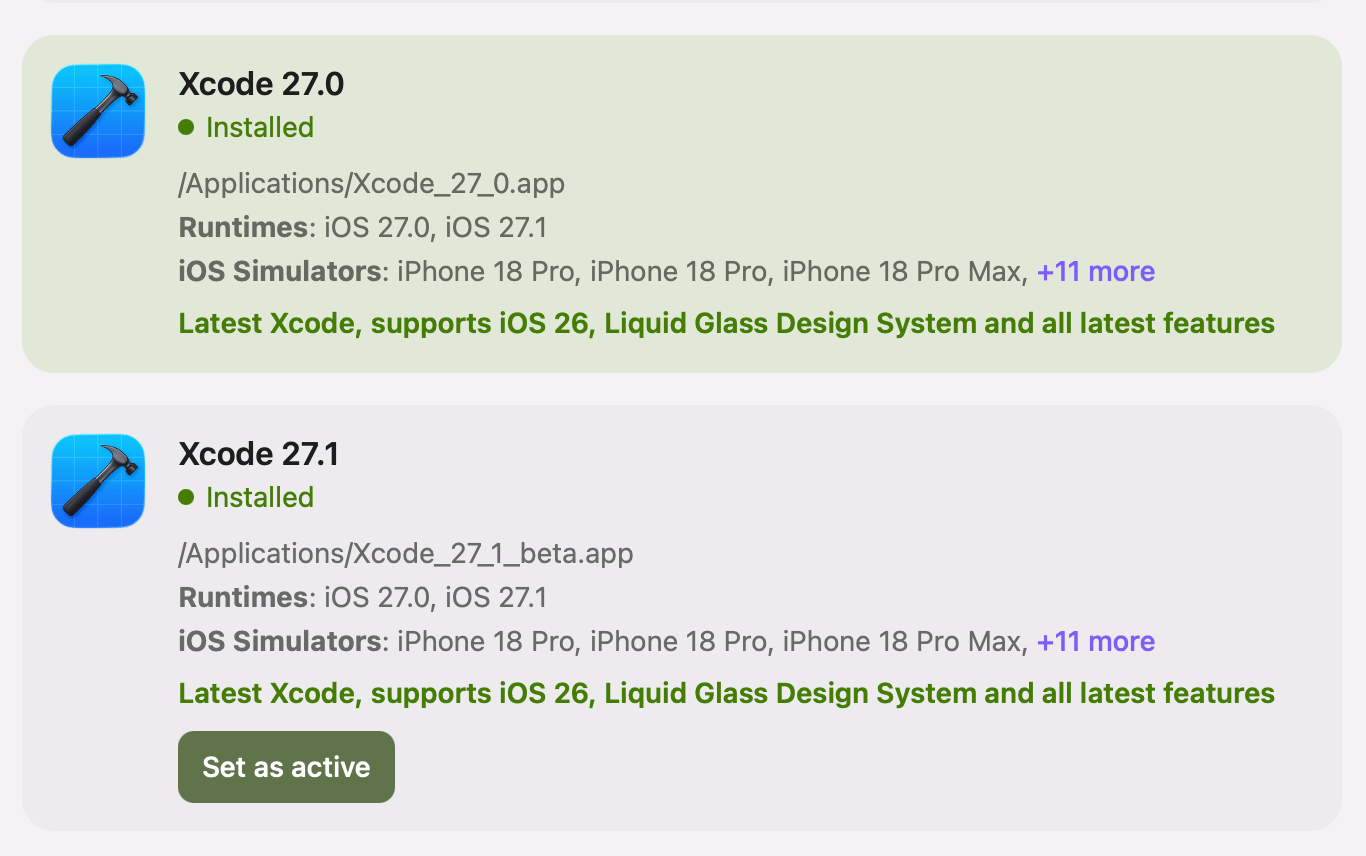
Xcode 27.0 is active. Archive & Upload now builds with the iOS 27.0 SDK.
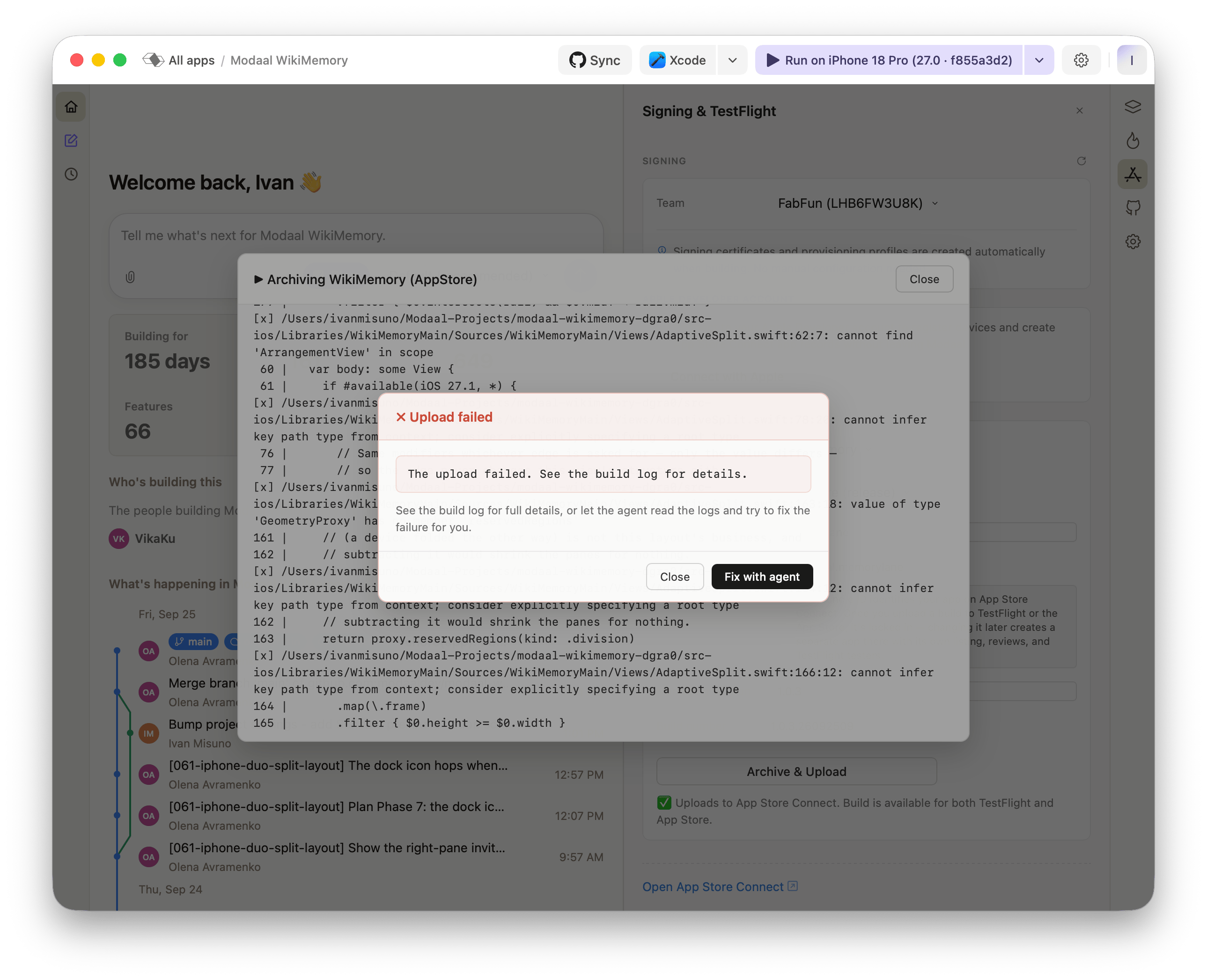
Archive & Upload with Xcode 27.0. AdaptiveSplit.swift uses ArrangementView and reservedRegions, which the iOS 27.0 SDK does not declare, so compilation stops and nothing is uploaded.
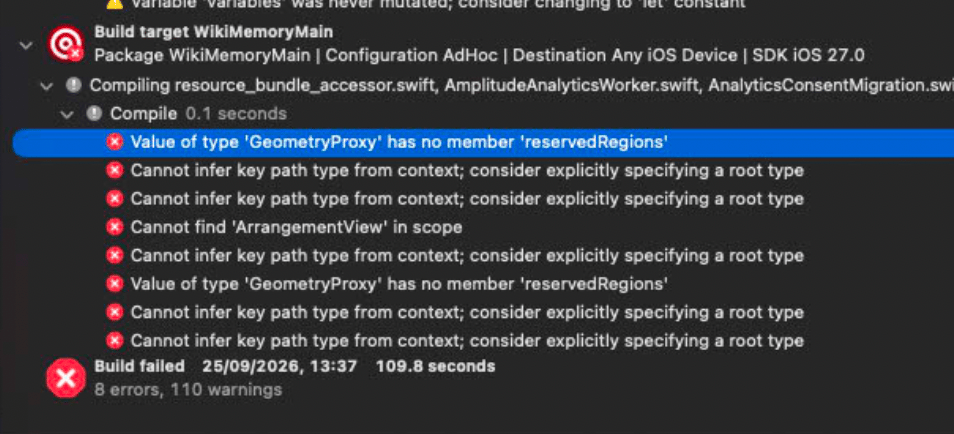
The same project built in Xcode 27.0 against SDK iOS 27.0: 8 errors.
Value of type 'GeometryProxy' has no member 'reservedRegions'Cannot find 'ArrangementView' in scopeCannot infer key path type from context; consider explicitly specifying a root type, on the.map(\.frame)line after eachreservedRegionscall. It is caused by the first error, and the same fix removes it.
Step 5 — Give the agent the prompt
Paste the prompt below as-is, either into Modaal’s prompt box or into any coding agent session opened at the root of the project’s repository. The prompt names the missing APIs, the SDK versions that tell the two Xcodes apart, the guard to put around each use, and how to verify both builds. Its last section covers Modaal and Duet projects: building with therun_target tool, running scripts/run_tests.sh, and regenerating mocks.
Step 6 — Archive and upload with Xcode 27.0
With Xcode 27.0 still active, run the app on an iOS 27.0 simulator. It shows the layout the app had before iPhone Duo support.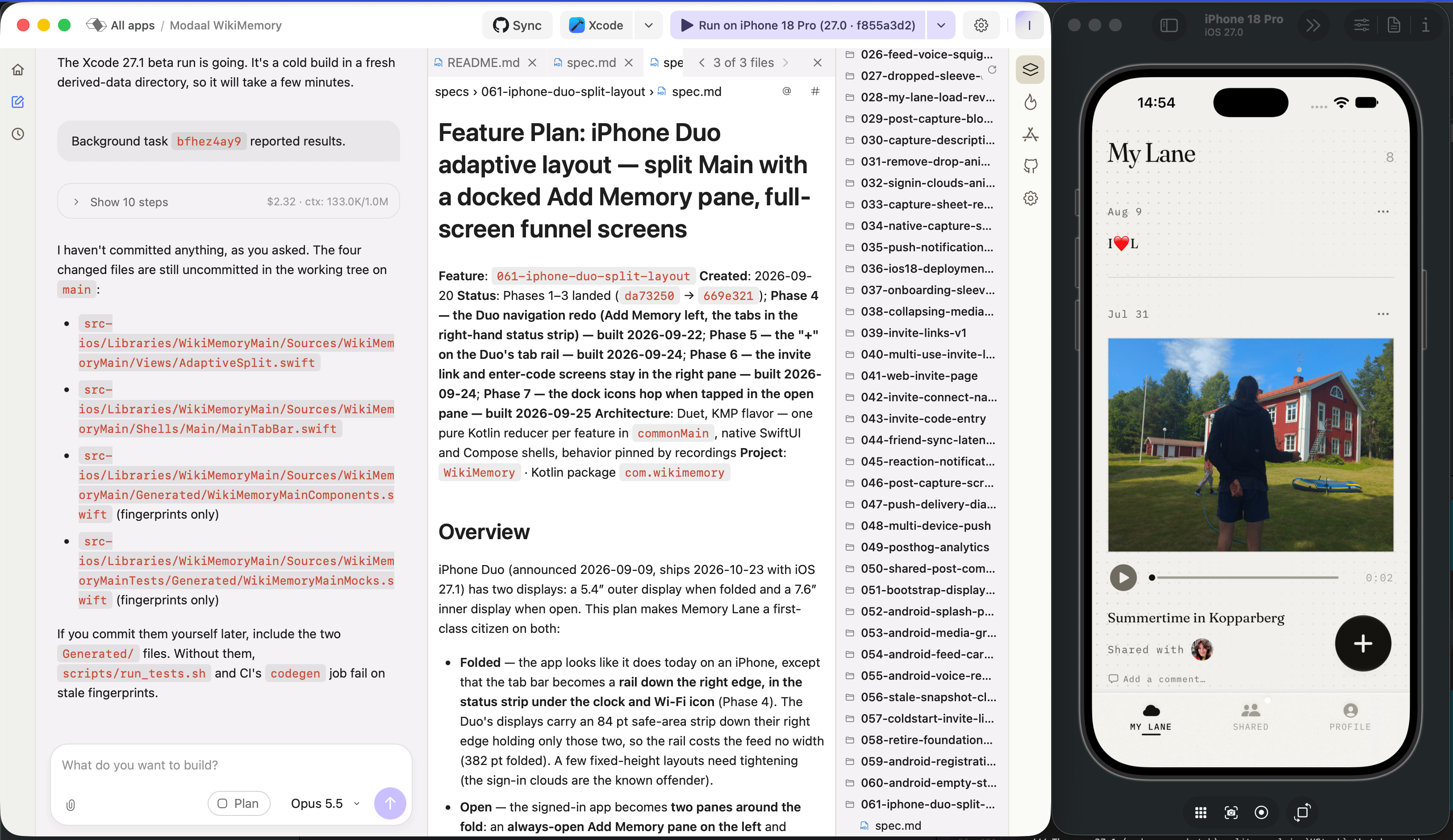
After the agent's change, built with Xcode 27.0 and running on iPhone 18 Pro (iOS 27.0): one pane and the tab bar at the bottom. The agent lists the four files it changed; two of them are generated files whose only change is their fingerprints.
Generated/: without their updated fingerprints, scripts/run_tests.sh and the CI codegen job fail. Then click Archive & Upload again.
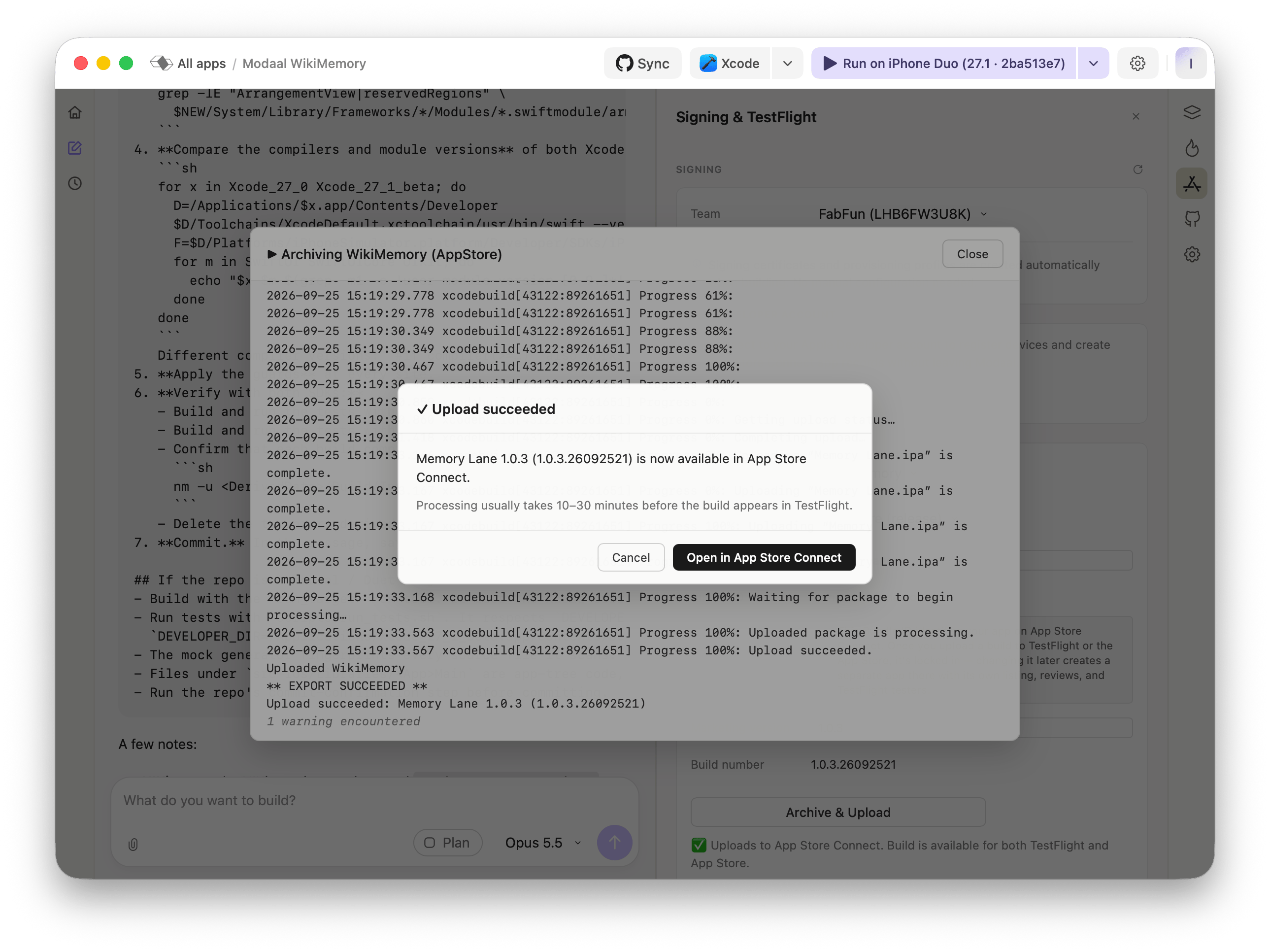
Archive & Upload with Xcode 27.0 succeeds: Memory Lane 1.0.3 (1.0.3.26092521) is in App Store Connect. Processing usually takes 10–30 minutes before the build appears in TestFlight.
Step 7 — Check that Xcode 27.1 beta still builds the iPhone Duo layout
Set Xcode 27.1 beta as active again and run the app on the iPhone Duo simulator. Without any source change, the build compiles the iOS 27.1 code path.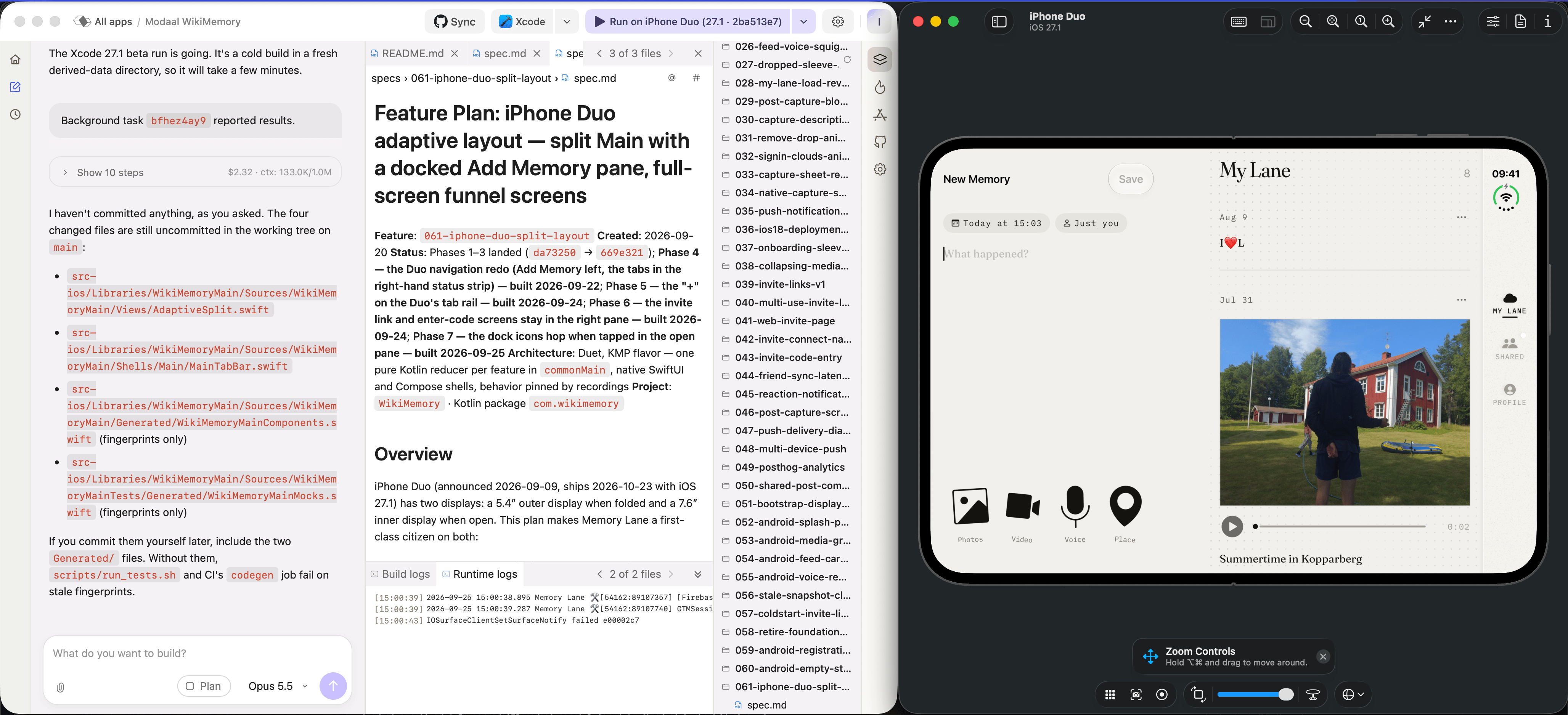
The same source built with Xcode 27.1 beta on the iPhone Duo simulator: the two-pane layout from step 3.
DEVELOPER_DIR set to Xcode 27.1 beta and a separate derived-data directory, then uses nm -u on the object files to confirm that only the Xcode 27.1 build references ArrangementView.
What the prompt changes
The guard has to be decided at compile time, and the compiler version cannot decide it: Xcode 27.0 and Xcode 27.1 beta ship the same compiler, Apple Swift 6.4 (swiftlang-6.4.0.34.1), so#if compiler(>=…) and #if swift(>=…) evaluate the same in both. The SDK frameworks differ. Each framework’s .swiftinterface file records a module version, and #if canImport(Module, _version:) compares against it:
#available check inside it:
#if decides which code is compiled. #available decides which code runs, and is still needed in the Xcode 27.1 build because the deployment target stays the same and devices on older iOS versions take the fallback. The threshold 8.0.85 is the first three parts of the newer SDK’s version rather than the beta’s full build number, so the final Xcode 27.1 release also passes it.
When Xcode 27.1 is released
When Apple releases Xcode 27.1 as a release candidate or final version and App Store Connect accepts builds made with it for review:- Install it and set it as active in Set up Xcode.
- Click Archive & Upload. The guard evaluates to true against the iOS 27.1 SDK, so this build contains the iPhone Duo code path.
- Submit the build for review as a new version.
To install and switch Xcode versions, see Set up Xcode. For how to write prompts like the one in step 5, see Modes and prompts.